> ## Documentation Index
> Fetch the complete documentation index at: https://docs.backstack.io/llms.txt
> Use this file to discover all available pages before exploring further.
# AI Chat & Conversations
> Have AI conversations with tool execution and memory
# AI Chat & Conversations
Backstack's chat interface lets you have conversations with AI assistants that can execute tools, remember information about you, and help you accomplish tasks across your organization.
 ## Starting a Conversation
### Creating Your First Chat
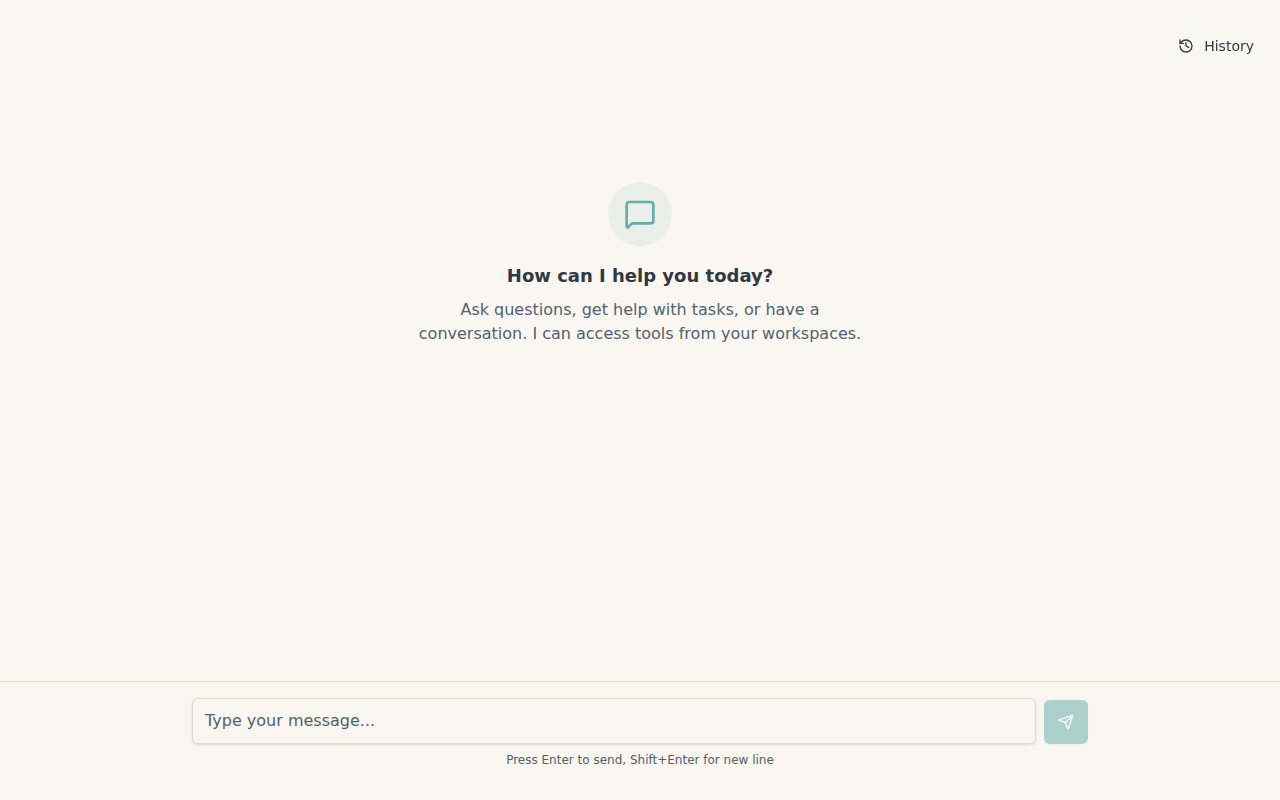
1. Navigate to **Chat** in the sidebar
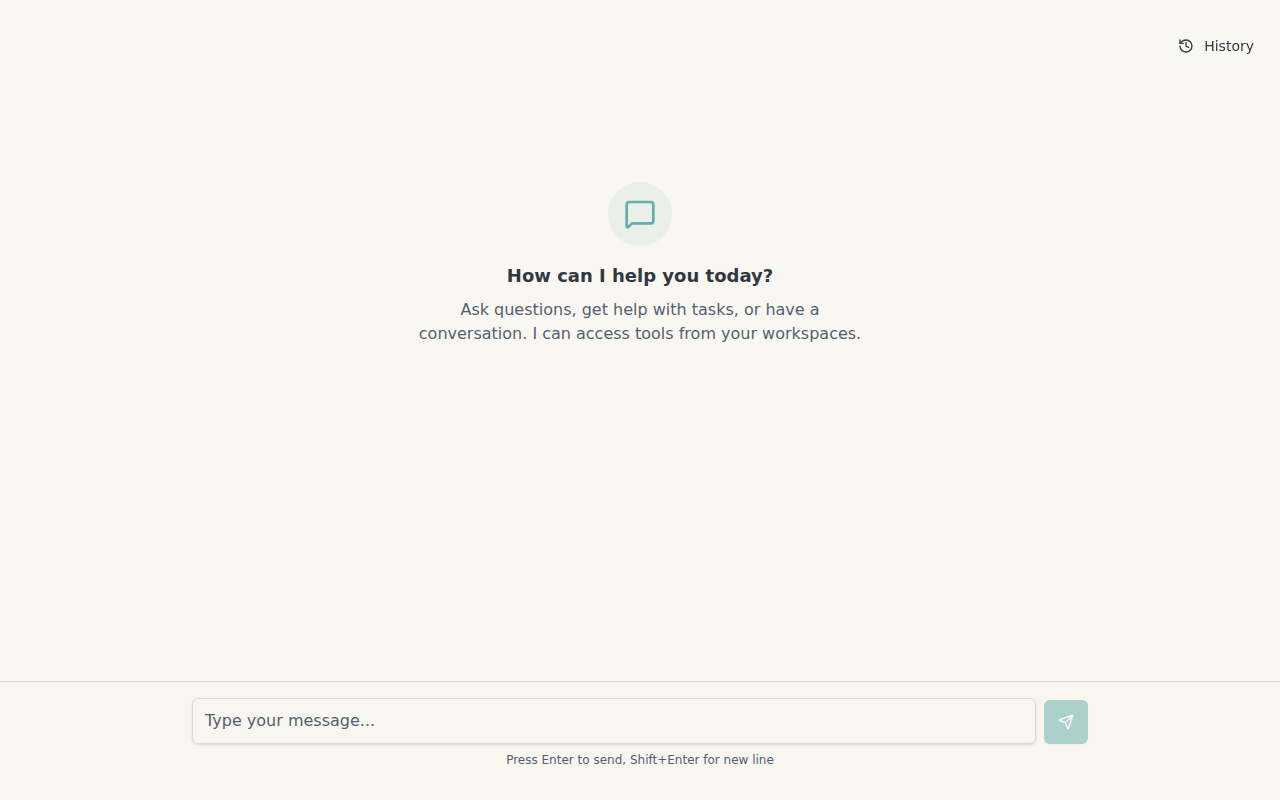
2. You'll see a welcome message: "How can I help you today?"
3. Type your message in the input field at the bottom
4. Press **Enter** to send (or **Shift+Enter** for a new line)
A new conversation is created automatically when you send your first message.
## Starting a Conversation
### Creating Your First Chat
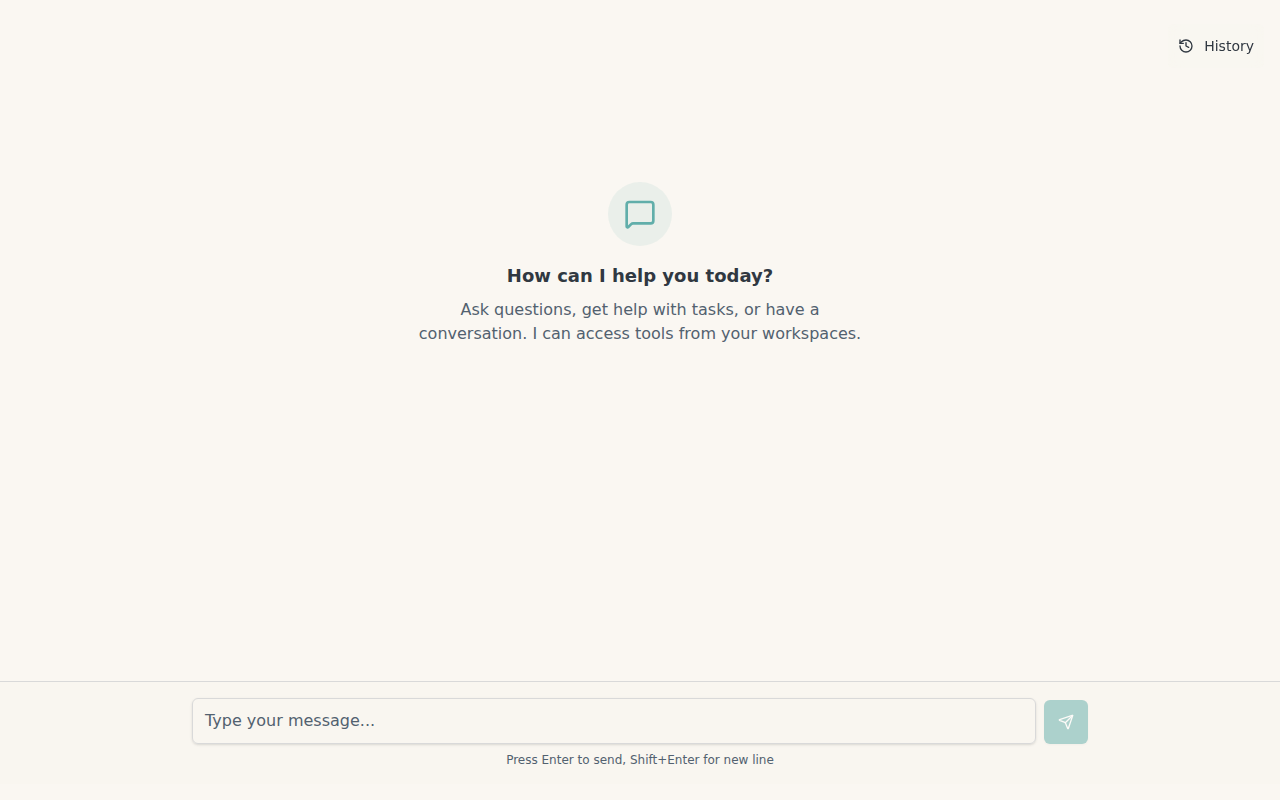
1. Navigate to **Chat** in the sidebar
2. You'll see a welcome message: "How can I help you today?"
3. Type your message in the input field at the bottom
4. Press **Enter** to send (or **Shift+Enter** for a new line)
A new conversation is created automatically when you send your first message.
 Each conversation is automatically titled "New Chat" until the assistant generates a more descriptive title based on your conversation.
### Message Input
The chat input supports:
* **Enter** - Send your message
* **Shift+Enter** - Add a new line without sending
* Rich text pasting from other applications
* Long messages with automatic scrolling
## Conversation Features
### Real-Time Streaming
Assistant responses appear word-by-word as they're generated:
1. You send a message
2. A typing indicator appears: "Assistant is typing..."
3. The response streams in real-time
4. The message completes and remains in your history
This gives you immediate feedback and lets you see the assistant's thought process as it works.
### Tool Execution
When the assistant needs to perform actions, it executes tools automatically:
**Tool Call Display:**
* Tools appear as expandable boxes with a wrench icon
* Status badges show execution progress:
* **"Executing..."** (blue) - Tool is currently running
* **"Success ✓"** (green) - Tool completed successfully
* **"Failed ✗"** (red) - Tool execution failed
* Execution time is displayed in milliseconds
**Viewing Tool Details:**
Click on any tool call box to expand it and see:
1. **Parameters** - The inputs passed to the tool (formatted JSON)
2. **Result** - The tool's output or response
3. **Error Message** - If the tool failed, why it failed
Tools execute in real-time as the assistant works through your request, appearing in chronological order within the conversation.
Each conversation is automatically titled "New Chat" until the assistant generates a more descriptive title based on your conversation.
### Message Input
The chat input supports:
* **Enter** - Send your message
* **Shift+Enter** - Add a new line without sending
* Rich text pasting from other applications
* Long messages with automatic scrolling
## Conversation Features
### Real-Time Streaming
Assistant responses appear word-by-word as they're generated:
1. You send a message
2. A typing indicator appears: "Assistant is typing..."
3. The response streams in real-time
4. The message completes and remains in your history
This gives you immediate feedback and lets you see the assistant's thought process as it works.
### Tool Execution
When the assistant needs to perform actions, it executes tools automatically:
**Tool Call Display:**
* Tools appear as expandable boxes with a wrench icon
* Status badges show execution progress:
* **"Executing..."** (blue) - Tool is currently running
* **"Success ✓"** (green) - Tool completed successfully
* **"Failed ✗"** (red) - Tool execution failed
* Execution time is displayed in milliseconds
**Viewing Tool Details:**
Click on any tool call box to expand it and see:
1. **Parameters** - The inputs passed to the tool (formatted JSON)
2. **Result** - The tool's output or response
3. **Error Message** - If the tool failed, why it failed
Tools execute in real-time as the assistant works through your request, appearing in chronological order within the conversation.
 Tools available to the assistant depend on which services are installed in your organization and assigned to your workspace. See [Organization Services](/organization-services) to manage tools.
### Memory and Learning
The assistant can remember information about you across conversations:
**Memory Callouts** appear inline with a brain icon:
* **Facts**: "Memory: User prefers TypeScript"
* **Patterns**: "Memory: Pattern: email-validation - Examples: [user@email.com](mailto:user@email.com)"
Memories help the assistant:
* Remember your preferences
* Recall information from previous conversations
* Personalize responses to your needs
* Avoid asking repetitive questions
Deleted memories appear with strikethrough styling.
### Reasoning Sections
For complex tasks, the assistant may show its reasoning process:
**Reasoning boxes** (lightbulb icon) expand to show:
* **Progress** - What's been accomplished so far
* **Next Action** - What will be done next
* **Why** - Reasoning for the chosen approach
* **Plan Adjustments** - Any changes to the original plan
* **Need Your Input** - Questions or decisions requiring your response
This transparency helps you understand how the assistant is solving your problem.
### Conversation Routing
The assistant can organize your messages across multiple conversations automatically:
**Context Switch Indicators** show routing decisions:
* **"Continuing here"** (green) - Staying in current conversation
* **"Switched conversation"** (blue) - Moved to a different conversation
* **"New conversation"** (purple) - Created a new conversation
Each indicator explains why the switch occurred, helping you understand how your conversations are organized.
## Managing Conversations
### Viewing Conversation History
Access your conversation history:
1. Click the **History** button in the top-right corner
2. View a list of all your conversations
3. Each conversation shows:
* Title
* Number of messages
4. Click any conversation to jump to it in the message stream
### Deleting Conversations
To remove a conversation:
1. Open the History panel
2. Hover over the conversation (or tap on mobile)
3. Click the trash icon
4. Confirm deletion in the dialog
Deleting a conversation is permanent and cannot be undone. All messages, tool executions, and memories from that conversation will be removed.
### Continuous Message Stream
All your messages appear in one continuous, chronological stream:
* Messages from all conversations are sorted by time
* Conversation boundaries are marked with visual separators
* You can see how conversations relate to each other
* Scroll through your complete history seamlessly
This design helps you track patterns and connections across conversations.
## Message Types
### Text Messages
**Your Messages:**
* Light background highlight
* Labeled "You"
* Appear immediately when sent
**Assistant Messages:**
* Rendered with full Markdown formatting
* Support for:
* **Bold** and *italics*
* `Code blocks` and inline code
* Lists (bulleted and numbered)
* Tables
* Blockquotes
* Links and images
* Headings
### Rich Content
Messages can include:
1. **Tool Calls** - Executable actions with parameters and results
2. **Memory Callouts** - Facts and patterns the assistant has learned
3. **Reasoning** - Thought process and planning steps
4. **Context Switches** - Conversation routing decisions
5. **Policy Violations** - Content policy notices (if applicable)
All content types are inline and chronologically ordered, giving you a complete view of how the assistant worked through your request.
## Best Practices
### Effective Conversations
**Be Specific:**
* Provide context about what you're trying to accomplish
* Include relevant details (file names, error messages, requirements)
* Mention any constraints or preferences
**Use Multi-Turn Conversations:**
* Break complex tasks into steps
* Ask follow-up questions
* Refine your request based on initial responses
**Leverage Tools:**
* The assistant can execute tools automatically
* Mention what actions you need (search, file operations, API calls)
* Review tool results to verify they're what you expected
**Trust Memory:**
* The assistant remembers your preferences
* You don't need to repeat context in every conversation
* Correct the assistant if it remembers something incorrectly
### Conversation Organization
**Let the Assistant Route:**
* The assistant will organize messages across conversations
* Trust the routing decisions - they're based on context and relevance
* Check the routing indicators to understand why switches occurred
**Use History Effectively:**
* Review past conversations to recall decisions
* Delete conversations that are no longer relevant
* Keep conversation titles descriptive (the assistant generates these automatically)
**Monitor Tool Execution:**
* Expand tool calls to verify parameters
* Check execution times for performance insights
* Report failed tools to your organization admin
## Mobile Usage
The chat interface is optimized for mobile:
* **Touch Targets** - All buttons are at least 44x44 pixels
* **iOS Safari** - Keyboard handling and safe area support
* **Responsive Layout** - Adapts to screen size
* **Momentum Scrolling** - Smooth code block scrolling
* **No Zoom** - 16px input font prevents iOS auto-zoom
Access your conversations seamlessly across desktop and mobile devices.
## Troubleshooting
### Assistant Not Responding
**Problem:** Message sent but no response appears
**Solutions:**
* Check your internet connection
* Refresh the page and try again
* Verify your organization has AI providers configured (Organization → AI Providers)
* Contact your organization admin if the issue persists
### Tool Execution Failures
**Problem:** Tool shows "Failed" status
**Solutions:**
* Expand the tool call to see the error message
* Common issues:
* **Missing permissions** - Tool needs authorization or API key
* **Invalid parameters** - Check if the tool received correct inputs
* **Service unavailable** - External service may be down
* Report repeated failures to your organization admin
### Streaming Interrupted
**Problem:** Response stops mid-stream
**Solutions:**
* Wait a moment - streaming may resume
* Refresh the page if response is stuck for more than 30 seconds
* Check browser console for errors
* Try sending the message again
### Memory Issues
**Problem:** Assistant forgot something or remembers incorrectly
**Solutions:**
* Explicitly correct the assistant: "Actually, I prefer Python, not JavaScript"
* The assistant will update its memory based on your correction
* Deleted memories are marked with strikethrough
* Contact support if memory issues persist across sessions
### Can't Find Past Conversations
**Problem:** Conversation missing from history
**Solutions:**
* Scroll through the continuous message stream - it may be there
* Check if you accidentally deleted it
* Verify you're in the correct workspace (conversations are workspace-specific)
* Try refreshing the page
## Privacy and Security
### Data Handling
* Conversations are stored within your workspace
* Only workspace members can see conversations
* Messages are transmitted securely
* Tool executions are logged for audit purposes
### Content Policies
The assistant follows content policies defined by:
* Your organization's security policies (see [Security Policies](/security-policies))
* Platform-wide safety guidelines
* Tool-specific restrictions
Policy violation notices appear as footnotes on affected messages.
## Next Steps
Add MCP tools for the assistant to use
Set up security policies for conversations
Monitor conversation and tool usage
Organize conversations and tools into workspaces
Tools available to the assistant depend on which services are installed in your organization and assigned to your workspace. See [Organization Services](/organization-services) to manage tools.
### Memory and Learning
The assistant can remember information about you across conversations:
**Memory Callouts** appear inline with a brain icon:
* **Facts**: "Memory: User prefers TypeScript"
* **Patterns**: "Memory: Pattern: email-validation - Examples: [user@email.com](mailto:user@email.com)"
Memories help the assistant:
* Remember your preferences
* Recall information from previous conversations
* Personalize responses to your needs
* Avoid asking repetitive questions
Deleted memories appear with strikethrough styling.
### Reasoning Sections
For complex tasks, the assistant may show its reasoning process:
**Reasoning boxes** (lightbulb icon) expand to show:
* **Progress** - What's been accomplished so far
* **Next Action** - What will be done next
* **Why** - Reasoning for the chosen approach
* **Plan Adjustments** - Any changes to the original plan
* **Need Your Input** - Questions or decisions requiring your response
This transparency helps you understand how the assistant is solving your problem.
### Conversation Routing
The assistant can organize your messages across multiple conversations automatically:
**Context Switch Indicators** show routing decisions:
* **"Continuing here"** (green) - Staying in current conversation
* **"Switched conversation"** (blue) - Moved to a different conversation
* **"New conversation"** (purple) - Created a new conversation
Each indicator explains why the switch occurred, helping you understand how your conversations are organized.
## Managing Conversations
### Viewing Conversation History
Access your conversation history:
1. Click the **History** button in the top-right corner
2. View a list of all your conversations
3. Each conversation shows:
* Title
* Number of messages
4. Click any conversation to jump to it in the message stream
### Deleting Conversations
To remove a conversation:
1. Open the History panel
2. Hover over the conversation (or tap on mobile)
3. Click the trash icon
4. Confirm deletion in the dialog
Deleting a conversation is permanent and cannot be undone. All messages, tool executions, and memories from that conversation will be removed.
### Continuous Message Stream
All your messages appear in one continuous, chronological stream:
* Messages from all conversations are sorted by time
* Conversation boundaries are marked with visual separators
* You can see how conversations relate to each other
* Scroll through your complete history seamlessly
This design helps you track patterns and connections across conversations.
## Message Types
### Text Messages
**Your Messages:**
* Light background highlight
* Labeled "You"
* Appear immediately when sent
**Assistant Messages:**
* Rendered with full Markdown formatting
* Support for:
* **Bold** and *italics*
* `Code blocks` and inline code
* Lists (bulleted and numbered)
* Tables
* Blockquotes
* Links and images
* Headings
### Rich Content
Messages can include:
1. **Tool Calls** - Executable actions with parameters and results
2. **Memory Callouts** - Facts and patterns the assistant has learned
3. **Reasoning** - Thought process and planning steps
4. **Context Switches** - Conversation routing decisions
5. **Policy Violations** - Content policy notices (if applicable)
All content types are inline and chronologically ordered, giving you a complete view of how the assistant worked through your request.
## Best Practices
### Effective Conversations
**Be Specific:**
* Provide context about what you're trying to accomplish
* Include relevant details (file names, error messages, requirements)
* Mention any constraints or preferences
**Use Multi-Turn Conversations:**
* Break complex tasks into steps
* Ask follow-up questions
* Refine your request based on initial responses
**Leverage Tools:**
* The assistant can execute tools automatically
* Mention what actions you need (search, file operations, API calls)
* Review tool results to verify they're what you expected
**Trust Memory:**
* The assistant remembers your preferences
* You don't need to repeat context in every conversation
* Correct the assistant if it remembers something incorrectly
### Conversation Organization
**Let the Assistant Route:**
* The assistant will organize messages across conversations
* Trust the routing decisions - they're based on context and relevance
* Check the routing indicators to understand why switches occurred
**Use History Effectively:**
* Review past conversations to recall decisions
* Delete conversations that are no longer relevant
* Keep conversation titles descriptive (the assistant generates these automatically)
**Monitor Tool Execution:**
* Expand tool calls to verify parameters
* Check execution times for performance insights
* Report failed tools to your organization admin
## Mobile Usage
The chat interface is optimized for mobile:
* **Touch Targets** - All buttons are at least 44x44 pixels
* **iOS Safari** - Keyboard handling and safe area support
* **Responsive Layout** - Adapts to screen size
* **Momentum Scrolling** - Smooth code block scrolling
* **No Zoom** - 16px input font prevents iOS auto-zoom
Access your conversations seamlessly across desktop and mobile devices.
## Troubleshooting
### Assistant Not Responding
**Problem:** Message sent but no response appears
**Solutions:**
* Check your internet connection
* Refresh the page and try again
* Verify your organization has AI providers configured (Organization → AI Providers)
* Contact your organization admin if the issue persists
### Tool Execution Failures
**Problem:** Tool shows "Failed" status
**Solutions:**
* Expand the tool call to see the error message
* Common issues:
* **Missing permissions** - Tool needs authorization or API key
* **Invalid parameters** - Check if the tool received correct inputs
* **Service unavailable** - External service may be down
* Report repeated failures to your organization admin
### Streaming Interrupted
**Problem:** Response stops mid-stream
**Solutions:**
* Wait a moment - streaming may resume
* Refresh the page if response is stuck for more than 30 seconds
* Check browser console for errors
* Try sending the message again
### Memory Issues
**Problem:** Assistant forgot something or remembers incorrectly
**Solutions:**
* Explicitly correct the assistant: "Actually, I prefer Python, not JavaScript"
* The assistant will update its memory based on your correction
* Deleted memories are marked with strikethrough
* Contact support if memory issues persist across sessions
### Can't Find Past Conversations
**Problem:** Conversation missing from history
**Solutions:**
* Scroll through the continuous message stream - it may be there
* Check if you accidentally deleted it
* Verify you're in the correct workspace (conversations are workspace-specific)
* Try refreshing the page
## Privacy and Security
### Data Handling
* Conversations are stored within your workspace
* Only workspace members can see conversations
* Messages are transmitted securely
* Tool executions are logged for audit purposes
### Content Policies
The assistant follows content policies defined by:
* Your organization's security policies (see [Security Policies](/security-policies))
* Platform-wide safety guidelines
* Tool-specific restrictions
Policy violation notices appear as footnotes on affected messages.
## Next Steps
Add MCP tools for the assistant to use
Set up security policies for conversations
Monitor conversation and tool usage
Organize conversations and tools into workspaces