> ## Documentation Index
> Fetch the complete documentation index at: https://docs.backstack.io/llms.txt
> Use this file to discover all available pages before exploring further.
# Desktop Application
> Sync local documents and manage your Backstack connection
# Desktop Application
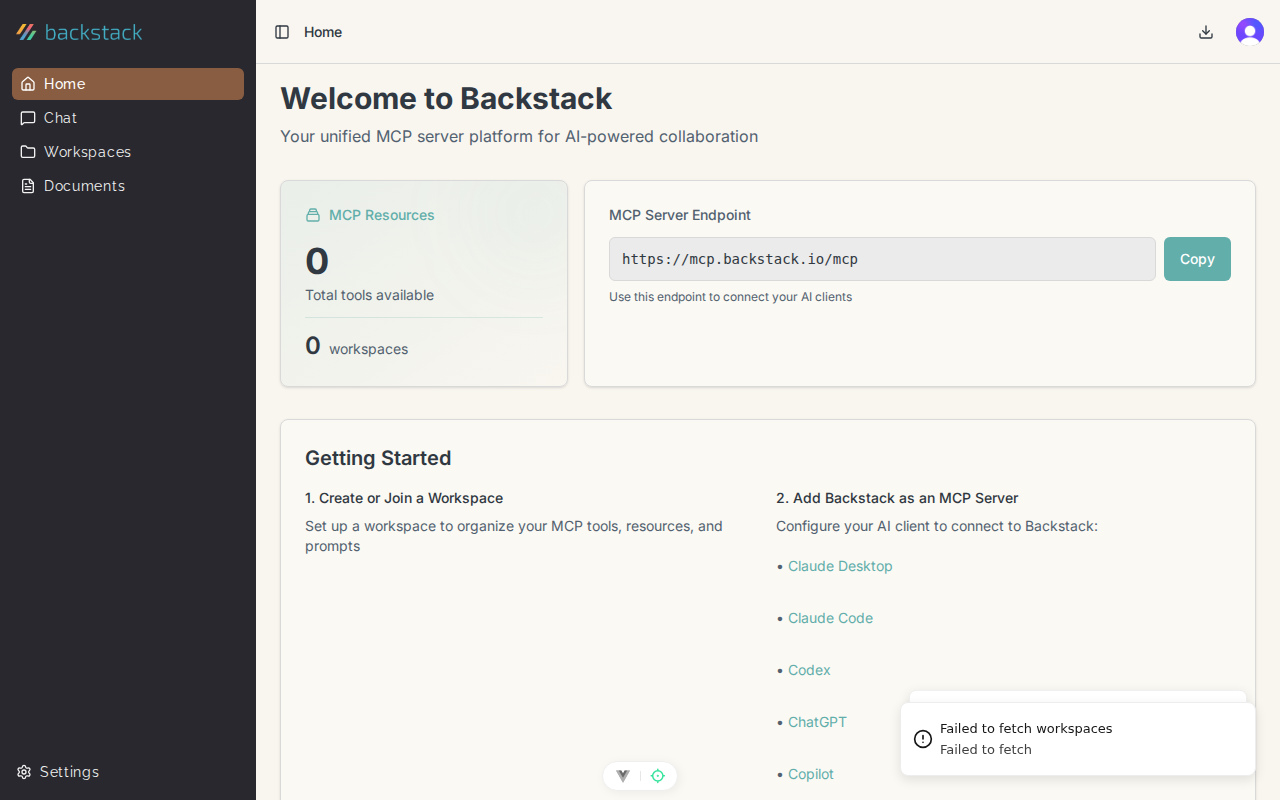
The Backstack Desktop application enables local file discovery, document synchronization, and seamless connection to your organization. It runs in the background on your computer, making your local documents searchable and accessible to AI conversations.
 ## What the Desktop App Does
**Key Features:**
* **Document Discovery** - Automatically find documents in folders you specify
* **Background Sync** - Keep documents synchronized with Backstack
* **Watched Folders** - Monitor specific directories for changes
* **Organization Connection** - Securely link your desktop to your Backstack organization
* **Device Management** - Manage multiple devices per organization
* **Offline Support** - Index documents locally when disconnected
The Desktop app is required for document management features. Without it, you can still use Backstack's chat and MCP features, but document sharing and search won't be available.
## Installation
### Windows
1. Download the installer:
* Visit [app.backstack.io/download](https://app.backstack.io/download)
* Click **Download for Windows**
* Save `Backstack-Setup.exe`
2. Run the installer:
* Double-click `Backstack-Setup.exe`
* Follow the installation wizard
* Choose installation location (default: `C:\Program Files\Backstack`)
* Click **Install**
3. Launch Backstack Desktop:
* Application starts automatically after installation
* Find the Backstack icon in your system tray (bottom-right)
**System Requirements:**
* Windows 10 or later (64-bit)
* 500 MB free disk space
* Internet connection
### macOS
1. Download the installer:
* Visit [app.backstack.io/download](https://app.backstack.io/download)
* Click **Download for macOS**
* Save `Backstack.dmg`
2. Install the application:
* Open `Backstack.dmg`
* Drag Backstack to Applications folder
* Eject the disk image
3. First launch:
* Open Applications folder
* Double-click Backstack
* If you see "Backstack cannot be opened," right-click and select **Open**
* Click **Open** in the security dialog
* Find the Backstack icon in your menu bar (top-right)
**System Requirements:**
* macOS 11 (Big Sur) or later
* Intel or Apple Silicon (M1/M2/M3) processor
* 500 MB free disk space
* Internet connection
### Linux
1. Download the package:
* Visit [app.backstack.io/download](https://app.backstack.io/download)
* Choose your distribution:
* **Debian/Ubuntu**: `backstack_amd64.deb`
* **Fedora/RHEL**: `backstack_x86_64.rpm`
* **AppImage**: `Backstack.AppImage` (universal)
2. Install:
**Debian/Ubuntu:**
```bash theme={null}
sudo dpkg -i backstack_amd64.deb
sudo apt-get install -f # Fix dependencies if needed
```
**Fedora/RHEL:**
```bash theme={null}
sudo rpm -i backstack_x86_64.rpm
```
**AppImage:**
```bash theme={null}
chmod +x Backstack.AppImage
./Backstack.AppImage
```
3. Launch:
* Search for "Backstack" in your application menu
* Or run `backstack` from terminal
**System Requirements:**
* Modern Linux distribution (Ubuntu 20.04+, Fedora 35+, or equivalent)
* 500 MB free disk space
* Internet connection
## Connecting to Your Organization
### First-Time Setup
After installing and launching the Desktop app:
1. **Welcome Screen** appears
2. Click **Connect to Organization**
3. Choose authorization method:
**Option A: QR Code (Recommended)**
* A QR code appears on your desktop
* Open Backstack web app on your phone or another device
* Navigate to **Settings** → **Devices**
* Click **Add Device**
* Scan the QR code with your device camera
* Desktop app connects automatically
**Option B: Authorization Code**
* Desktop shows a 6-digit code
* Go to [app.backstack.io/devices](https://app.backstack.io/devices)
* Click **Add Device**
* Enter the 6-digit code
* Click **Authorize**
4. **Device Naming**:
* Desktop app is automatically named (e.g., "John's MacBook Pro")
* Rename if desired in device settings
5. **Confirmation**:
* Desktop shows "Connected to \[Organization Name]"
* You're ready to configure document sync
QR code authorization is faster and doesn't require typing codes. Use it when you have your phone or another device nearby with the Backstack web app open.
### Multiple Organizations
If you're a member of multiple organizations:
1. Click the Backstack icon in system tray/menu bar
2. Select **Switch Organization**
3. Choose the organization you want to connect to
4. Desktop syncs with the selected organization
Only one organization is active at a time. Documents sync to the currently selected organization.
## Watched Folders
### What Are Watched Folders?
Watched folders are directories on your computer that Backstack Desktop monitors for documents. Any files in these folders are automatically:
* Discovered and indexed
* Made available for sharing to workspaces
* Kept synchronized with updates
### Adding Watched Folders
1. Click the Backstack icon in system tray/menu bar
2. Select **Settings** → **Watched Folders**
3. Click **Add Folder**
4. Browse to the folder you want to watch
5. Click **Select Folder**
The folder appears in your watched folders list, and scanning begins immediately.
**Common Folders to Watch:**
* Documents folder
* Project directories
* Downloads folder
* Specific client or project folders
### Folder Permissions
Backstack Desktop needs read access to watched folders:
**Windows:**
* Desktop app requests permissions on first folder add
* Grant read access when prompted
**macOS:**
* System prompts for "Files and Folders" permission
* Go to System Preferences → Security & Privacy → Privacy
* Enable access for Backstack under "Files and Folders"
**Linux:**
* Ensure your user has read permissions for the folder
* Check with: `ls -la /path/to/folder`
### Excluding Files and Folders
Prevent specific files or subdirectories from being indexed:
1. Open **Watched Folders** settings
2. Select a watched folder
3. Click **Exclusions**
4. Add patterns:
* `node_modules/` - Exclude all node\_modules directories
* `*.log` - Exclude log files
* `.git/` - Exclude git repositories
* `temp/` - Exclude temporary folders
Exclusions use glob patterns and apply recursively.
Excluded files are never indexed or synced. If you later remove an exclusion, those files will be discovered on the next scan.
### Removing Watched Folders
To stop watching a folder:
1. Go to **Watched Folders** settings
2. Select the folder to remove
3. Click **Remove**
4. Confirm removal
Documents from that folder are no longer synced. Already-shared documents remain available in workspaces until you explicitly unshare them.
## Document Sync Behavior
### How Sync Works
**Initial Scan:**
1. You add a watched folder
2. Desktop app scans all files
3. Supported documents are indexed
4. Index is uploaded to Backstack
5. Documents appear in your library
**Ongoing Monitoring:**
1. Desktop watches for file system changes
2. New files are discovered automatically
3. Modified files are re-indexed
4. Deleted files are removed from Backstack
5. Changes sync within seconds
**Sync States:**
* **Syncing** - Actively uploading changes
* **Up to Date** - All changes synchronized
* **Paused** - Sync temporarily disabled
* **Error** - Issue preventing sync (check logs)
### Supported File Types
Documents that can be indexed and shared:
| Category | File Types |
| ----------------- | ------------------------------------------------------------------- |
| **Documents** | `.pdf`, `.docx`, `.doc`, `.txt`, `.md`, `.rtf` |
| **Spreadsheets** | `.xlsx`, `.xls`, `.csv` |
| **Presentations** | `.pptx`, `.ppt` |
| **Code** | `.js`, `.py`, `.java`, `.ts`, `.cpp`, `.rb`, `.go`, `.rs`, and more |
| **Data** | `.json`, `.xml`, `.yaml`, `.yml` |
| **Web** | `.html`, `.htm`, `.css` |
Unsupported files are ignored during scanning.
### Bandwidth and Performance
**Background Operation:**
* Desktop uses minimal CPU when idle
* Sync happens in background, doesn't slow down other apps
* Automatic throttling during active file operations
**Bandwidth Usage:**
* Initial scan: Varies by document count and size
* Ongoing sync: Minimal (only changes are uploaded)
* Pause sync in settings if bandwidth is limited
**Storage:**
* Local index: \~100 MB for 10,000 documents
* No duplicate storage - documents stay on your computer
## Device Management
### Viewing Your Devices
See all devices connected to your organization:
1. Go to [app.backstack.io/settings/devices](https://app.backstack.io/settings/devices)
2. View list of authorized devices:
* Device name
* Platform (Windows, macOS, Linux)
* Last sync time
* Connection status
### Renaming Devices
To change a device's display name:
1. Click the Backstack icon → **Settings**
2. Go to **Device Settings**
3. Enter a new name (e.g., "Work Laptop", "Home Desktop")
4. Click **Save**
Device name updates across all your devices.
### Disconnecting Devices
To remove a device from your organization:
**From the Device:**
1. Click Backstack icon → **Settings**
2. Click **Disconnect from Organization**
3. Confirm disconnection
**From the Web:**
1. Go to Settings → **Devices**
2. Find the device to remove
3. Click **Remove Device**
4. Confirm removal
Removing a device stops document sync immediately. Documents already shared to workspaces remain available, but no new changes from that device will sync.
## Troubleshooting
### Desktop App Won't Start
**Windows:**
* Check Task Manager for running Backstack processes
* Kill any hung processes
* Restart the application
* If issue persists, reinstall
**macOS:**
* Check Activity Monitor for Backstack
* Quit and relaunch
* Reset permissions in System Preferences → Security & Privacy
* Reinstall if needed
**Linux:**
* Check if process is running: `ps aux | grep backstack`
* Kill hung processes: `killall backstack`
* Check logs: `~/.config/Backstack/logs/`
* Reinstall package
### Can't Connect to Organization
**Problem:** Authorization fails or times out
**Solutions:**
* Check internet connection
* Verify you're logged into Backstack web app
* Try alternate authorization method (QR code vs code)
* Disable VPN temporarily
* Check firewall isn't blocking app
* Ensure system time is correct
### Documents Not Syncing
**Problem:** Files in watched folder don't appear in library
**Solutions:**
* Verify Desktop app is running and connected
* Check watched folder path is correct
* Ensure file types are supported
* Look for exclusion patterns blocking files
* Check sync status in Desktop settings
* Review error logs for permission issues
### High CPU Usage
**Problem:** Desktop app using excessive resources
**Solutions:**
* Check if large initial scan is in progress (wait for completion)
* Reduce number of watched folders
* Add exclusions for large directories (node\_modules, .git, build/)
* Pause sync temporarily
* Restart Desktop app
* Check for file system loops (symlinks)
### Sync Errors
**Problem:** Error badge on Backstack icon
**Solutions:**
* Click icon and view error details
* Common issues:
* **Permission denied**: Grant folder access in OS settings
* **Network error**: Check internet connection
* **Storage full**: Free up space on device
* **Authentication expired**: Re-authorize device
* Check logs for detailed error messages
* Contact support if error persists
## Privacy and Security
### What Gets Synced
**Indexed Content:**
* Document text content (for search)
* File metadata (name, size, type, modified date)
* Folder structure
**NOT Synced:**
* Binary file contents (images, videos, executables)
* Files outside watched folders
* System files
* Excluded files and folders
### Data Security
* All data transmitted over encrypted HTTPS
* Document content encrypted at rest
* Local index encrypted on disk
* No third-party access to your documents
* Unsharing removes content from Backstack servers
### Offline Behavior
When internet is unavailable:
* Desktop continues indexing locally
* Changes queue for sync when connection returns
* Document library shows last synced state
* Automatic sync resumes when online
## Best Practices
### Folder Organization
* **Be selective** - Don't watch your entire hard drive
* **Use project folders** - Watch specific project or client directories
* **Exclude build artifacts** - Add node\_modules, build/, dist/ to exclusions
* **Separate sensitive data** - Keep confidential files in non-watched folders
### Performance
* **Limit watched folders** - Start with 2-3 folders, add more as needed
* **Use exclusions** - Block large directories that don't need syncing
* **Pause during intensive work** - Disable sync when rendering video, compiling large projects
* **Regular cleanup** - Remove old watched folders you no longer need
### Security
* **Lock your computer** - Desktop has access to watched folders
* **Review shared documents** - Periodically audit what's shared to workspaces
* **Disconnect old devices** - Remove devices you no longer use
* **Use workspace boundaries** - Don't share sensitive docs to broad workspaces
## Next Steps
Learn how to share and search your synced documents
Create workspaces and share documents to teams
Use documents in AI conversations
Manage your devices and personal settings
## What the Desktop App Does
**Key Features:**
* **Document Discovery** - Automatically find documents in folders you specify
* **Background Sync** - Keep documents synchronized with Backstack
* **Watched Folders** - Monitor specific directories for changes
* **Organization Connection** - Securely link your desktop to your Backstack organization
* **Device Management** - Manage multiple devices per organization
* **Offline Support** - Index documents locally when disconnected
The Desktop app is required for document management features. Without it, you can still use Backstack's chat and MCP features, but document sharing and search won't be available.
## Installation
### Windows
1. Download the installer:
* Visit [app.backstack.io/download](https://app.backstack.io/download)
* Click **Download for Windows**
* Save `Backstack-Setup.exe`
2. Run the installer:
* Double-click `Backstack-Setup.exe`
* Follow the installation wizard
* Choose installation location (default: `C:\Program Files\Backstack`)
* Click **Install**
3. Launch Backstack Desktop:
* Application starts automatically after installation
* Find the Backstack icon in your system tray (bottom-right)
**System Requirements:**
* Windows 10 or later (64-bit)
* 500 MB free disk space
* Internet connection
### macOS
1. Download the installer:
* Visit [app.backstack.io/download](https://app.backstack.io/download)
* Click **Download for macOS**
* Save `Backstack.dmg`
2. Install the application:
* Open `Backstack.dmg`
* Drag Backstack to Applications folder
* Eject the disk image
3. First launch:
* Open Applications folder
* Double-click Backstack
* If you see "Backstack cannot be opened," right-click and select **Open**
* Click **Open** in the security dialog
* Find the Backstack icon in your menu bar (top-right)
**System Requirements:**
* macOS 11 (Big Sur) or later
* Intel or Apple Silicon (M1/M2/M3) processor
* 500 MB free disk space
* Internet connection
### Linux
1. Download the package:
* Visit [app.backstack.io/download](https://app.backstack.io/download)
* Choose your distribution:
* **Debian/Ubuntu**: `backstack_amd64.deb`
* **Fedora/RHEL**: `backstack_x86_64.rpm`
* **AppImage**: `Backstack.AppImage` (universal)
2. Install:
**Debian/Ubuntu:**
```bash theme={null}
sudo dpkg -i backstack_amd64.deb
sudo apt-get install -f # Fix dependencies if needed
```
**Fedora/RHEL:**
```bash theme={null}
sudo rpm -i backstack_x86_64.rpm
```
**AppImage:**
```bash theme={null}
chmod +x Backstack.AppImage
./Backstack.AppImage
```
3. Launch:
* Search for "Backstack" in your application menu
* Or run `backstack` from terminal
**System Requirements:**
* Modern Linux distribution (Ubuntu 20.04+, Fedora 35+, or equivalent)
* 500 MB free disk space
* Internet connection
## Connecting to Your Organization
### First-Time Setup
After installing and launching the Desktop app:
1. **Welcome Screen** appears
2. Click **Connect to Organization**
3. Choose authorization method:
**Option A: QR Code (Recommended)**
* A QR code appears on your desktop
* Open Backstack web app on your phone or another device
* Navigate to **Settings** → **Devices**
* Click **Add Device**
* Scan the QR code with your device camera
* Desktop app connects automatically
**Option B: Authorization Code**
* Desktop shows a 6-digit code
* Go to [app.backstack.io/devices](https://app.backstack.io/devices)
* Click **Add Device**
* Enter the 6-digit code
* Click **Authorize**
4. **Device Naming**:
* Desktop app is automatically named (e.g., "John's MacBook Pro")
* Rename if desired in device settings
5. **Confirmation**:
* Desktop shows "Connected to \[Organization Name]"
* You're ready to configure document sync
QR code authorization is faster and doesn't require typing codes. Use it when you have your phone or another device nearby with the Backstack web app open.
### Multiple Organizations
If you're a member of multiple organizations:
1. Click the Backstack icon in system tray/menu bar
2. Select **Switch Organization**
3. Choose the organization you want to connect to
4. Desktop syncs with the selected organization
Only one organization is active at a time. Documents sync to the currently selected organization.
## Watched Folders
### What Are Watched Folders?
Watched folders are directories on your computer that Backstack Desktop monitors for documents. Any files in these folders are automatically:
* Discovered and indexed
* Made available for sharing to workspaces
* Kept synchronized with updates
### Adding Watched Folders
1. Click the Backstack icon in system tray/menu bar
2. Select **Settings** → **Watched Folders**
3. Click **Add Folder**
4. Browse to the folder you want to watch
5. Click **Select Folder**
The folder appears in your watched folders list, and scanning begins immediately.
**Common Folders to Watch:**
* Documents folder
* Project directories
* Downloads folder
* Specific client or project folders
### Folder Permissions
Backstack Desktop needs read access to watched folders:
**Windows:**
* Desktop app requests permissions on first folder add
* Grant read access when prompted
**macOS:**
* System prompts for "Files and Folders" permission
* Go to System Preferences → Security & Privacy → Privacy
* Enable access for Backstack under "Files and Folders"
**Linux:**
* Ensure your user has read permissions for the folder
* Check with: `ls -la /path/to/folder`
### Excluding Files and Folders
Prevent specific files or subdirectories from being indexed:
1. Open **Watched Folders** settings
2. Select a watched folder
3. Click **Exclusions**
4. Add patterns:
* `node_modules/` - Exclude all node\_modules directories
* `*.log` - Exclude log files
* `.git/` - Exclude git repositories
* `temp/` - Exclude temporary folders
Exclusions use glob patterns and apply recursively.
Excluded files are never indexed or synced. If you later remove an exclusion, those files will be discovered on the next scan.
### Removing Watched Folders
To stop watching a folder:
1. Go to **Watched Folders** settings
2. Select the folder to remove
3. Click **Remove**
4. Confirm removal
Documents from that folder are no longer synced. Already-shared documents remain available in workspaces until you explicitly unshare them.
## Document Sync Behavior
### How Sync Works
**Initial Scan:**
1. You add a watched folder
2. Desktop app scans all files
3. Supported documents are indexed
4. Index is uploaded to Backstack
5. Documents appear in your library
**Ongoing Monitoring:**
1. Desktop watches for file system changes
2. New files are discovered automatically
3. Modified files are re-indexed
4. Deleted files are removed from Backstack
5. Changes sync within seconds
**Sync States:**
* **Syncing** - Actively uploading changes
* **Up to Date** - All changes synchronized
* **Paused** - Sync temporarily disabled
* **Error** - Issue preventing sync (check logs)
### Supported File Types
Documents that can be indexed and shared:
| Category | File Types |
| ----------------- | ------------------------------------------------------------------- |
| **Documents** | `.pdf`, `.docx`, `.doc`, `.txt`, `.md`, `.rtf` |
| **Spreadsheets** | `.xlsx`, `.xls`, `.csv` |
| **Presentations** | `.pptx`, `.ppt` |
| **Code** | `.js`, `.py`, `.java`, `.ts`, `.cpp`, `.rb`, `.go`, `.rs`, and more |
| **Data** | `.json`, `.xml`, `.yaml`, `.yml` |
| **Web** | `.html`, `.htm`, `.css` |
Unsupported files are ignored during scanning.
### Bandwidth and Performance
**Background Operation:**
* Desktop uses minimal CPU when idle
* Sync happens in background, doesn't slow down other apps
* Automatic throttling during active file operations
**Bandwidth Usage:**
* Initial scan: Varies by document count and size
* Ongoing sync: Minimal (only changes are uploaded)
* Pause sync in settings if bandwidth is limited
**Storage:**
* Local index: \~100 MB for 10,000 documents
* No duplicate storage - documents stay on your computer
## Device Management
### Viewing Your Devices
See all devices connected to your organization:
1. Go to [app.backstack.io/settings/devices](https://app.backstack.io/settings/devices)
2. View list of authorized devices:
* Device name
* Platform (Windows, macOS, Linux)
* Last sync time
* Connection status
### Renaming Devices
To change a device's display name:
1. Click the Backstack icon → **Settings**
2. Go to **Device Settings**
3. Enter a new name (e.g., "Work Laptop", "Home Desktop")
4. Click **Save**
Device name updates across all your devices.
### Disconnecting Devices
To remove a device from your organization:
**From the Device:**
1. Click Backstack icon → **Settings**
2. Click **Disconnect from Organization**
3. Confirm disconnection
**From the Web:**
1. Go to Settings → **Devices**
2. Find the device to remove
3. Click **Remove Device**
4. Confirm removal
Removing a device stops document sync immediately. Documents already shared to workspaces remain available, but no new changes from that device will sync.
## Troubleshooting
### Desktop App Won't Start
**Windows:**
* Check Task Manager for running Backstack processes
* Kill any hung processes
* Restart the application
* If issue persists, reinstall
**macOS:**
* Check Activity Monitor for Backstack
* Quit and relaunch
* Reset permissions in System Preferences → Security & Privacy
* Reinstall if needed
**Linux:**
* Check if process is running: `ps aux | grep backstack`
* Kill hung processes: `killall backstack`
* Check logs: `~/.config/Backstack/logs/`
* Reinstall package
### Can't Connect to Organization
**Problem:** Authorization fails or times out
**Solutions:**
* Check internet connection
* Verify you're logged into Backstack web app
* Try alternate authorization method (QR code vs code)
* Disable VPN temporarily
* Check firewall isn't blocking app
* Ensure system time is correct
### Documents Not Syncing
**Problem:** Files in watched folder don't appear in library
**Solutions:**
* Verify Desktop app is running and connected
* Check watched folder path is correct
* Ensure file types are supported
* Look for exclusion patterns blocking files
* Check sync status in Desktop settings
* Review error logs for permission issues
### High CPU Usage
**Problem:** Desktop app using excessive resources
**Solutions:**
* Check if large initial scan is in progress (wait for completion)
* Reduce number of watched folders
* Add exclusions for large directories (node\_modules, .git, build/)
* Pause sync temporarily
* Restart Desktop app
* Check for file system loops (symlinks)
### Sync Errors
**Problem:** Error badge on Backstack icon
**Solutions:**
* Click icon and view error details
* Common issues:
* **Permission denied**: Grant folder access in OS settings
* **Network error**: Check internet connection
* **Storage full**: Free up space on device
* **Authentication expired**: Re-authorize device
* Check logs for detailed error messages
* Contact support if error persists
## Privacy and Security
### What Gets Synced
**Indexed Content:**
* Document text content (for search)
* File metadata (name, size, type, modified date)
* Folder structure
**NOT Synced:**
* Binary file contents (images, videos, executables)
* Files outside watched folders
* System files
* Excluded files and folders
### Data Security
* All data transmitted over encrypted HTTPS
* Document content encrypted at rest
* Local index encrypted on disk
* No third-party access to your documents
* Unsharing removes content from Backstack servers
### Offline Behavior
When internet is unavailable:
* Desktop continues indexing locally
* Changes queue for sync when connection returns
* Document library shows last synced state
* Automatic sync resumes when online
## Best Practices
### Folder Organization
* **Be selective** - Don't watch your entire hard drive
* **Use project folders** - Watch specific project or client directories
* **Exclude build artifacts** - Add node\_modules, build/, dist/ to exclusions
* **Separate sensitive data** - Keep confidential files in non-watched folders
### Performance
* **Limit watched folders** - Start with 2-3 folders, add more as needed
* **Use exclusions** - Block large directories that don't need syncing
* **Pause during intensive work** - Disable sync when rendering video, compiling large projects
* **Regular cleanup** - Remove old watched folders you no longer need
### Security
* **Lock your computer** - Desktop has access to watched folders
* **Review shared documents** - Periodically audit what's shared to workspaces
* **Disconnect old devices** - Remove devices you no longer use
* **Use workspace boundaries** - Don't share sensitive docs to broad workspaces
## Next Steps
Learn how to share and search your synced documents
Create workspaces and share documents to teams
Use documents in AI conversations
Manage your devices and personal settings