> ## Documentation Index
> Fetch the complete documentation index at: https://docs.backstack.io/llms.txt
> Use this file to discover all available pages before exploring further.
# Organization Services
> Install and manage MCP tools and servers organization-wide
# Organization Services
Organization Services allow you to install and manage MCP (Model Context Protocol) tools and servers that are available organization-wide. These services can then be assigned to specific workspaces as needed.
## Overview
There are two types of services you can add:
Install MCP tools from npm that run as serverless functions
Connect to external MCP servers via URL
**Prerequisites**
* You must be an organization admin to manage services
* Access the Organization Services page at `/admin/tools`
## Installing NPM Packages
NPM packages are MCP tools that are installed from npm and run automatically when called by your AI clients.
### Steps to Install
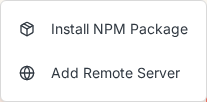
1. Click the **"Add Service"** button
2. Select **"Install NPM Package"** from the dropdown
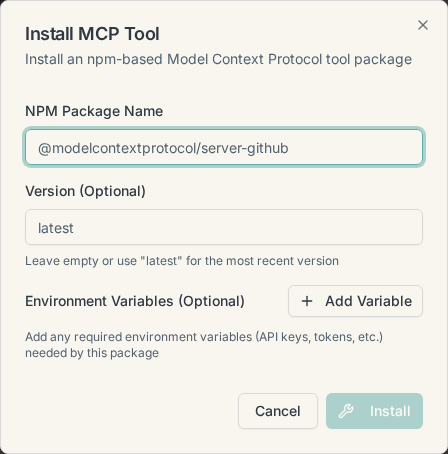
 3. Enter the NPM package name (e.g., `@modelcontextprotocol/server-github`)
4. Optionally specify a version (defaults to "latest")
5. Add any required environment variables:
* Click "Add Variable"
* Enter the key (e.g., `GITHUB_TOKEN`)
* Enter the value (will be stored securely)
6. Click **"Install"**
3. Enter the NPM package name (e.g., `@modelcontextprotocol/server-github`)
4. Optionally specify a version (defaults to "latest")
5. Add any required environment variables:
* Click "Add Variable"
* Enter the key (e.g., `GITHUB_TOKEN`)
* Enter the value (will be stored securely)
6. Click **"Install"**
 The service will start installing. You can monitor the build status by clicking on the service card and selecting "Install Status".
### Popular NPM Packages
* `@modelcontextprotocol/server-github` - GitHub integration
* `@modelcontextprotocol/server-filesystem` - File system access
* `@modelcontextprotocol/server-postgres` - PostgreSQL database access
* `@modelcontextprotocol/server-brave-search` - Brave search integration
### Installation Process
When you install an NPM package, the system:
1. Downloads the package and its dependencies
2. Prepares the service for deployment
3. Deploys the service to run automatically when called
4. Makes the service available for assignment to workspaces
Installation typically takes 2-5 minutes depending on package size.
## Adding Remote Servers
Remote servers are external MCP servers that you connect to via URL. The server handles the MCP protocol communication.
### Steps to Add
1. Click the **"Add Service"** button
2. Select **"Add Remote Server"** from the dropdown
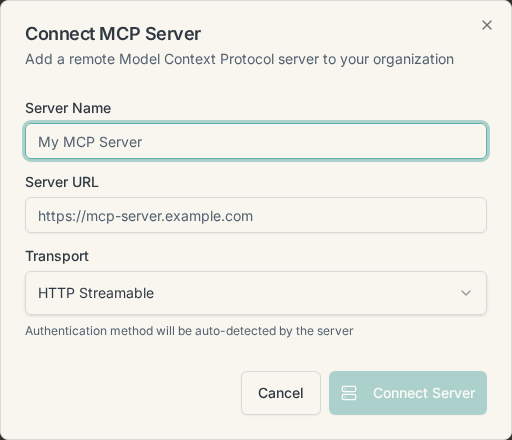
3. Enter a descriptive **Server Name**
4. Enter the **Server URL** (e.g., `https://mcp-server.example.com`)
5. Select the **Transport** type:
* **Server-Sent Events (SSE)** - For streaming responses
* **HTTP Streamable** - For HTTP-based streaming
6. If the server requires authentication:
* The system will auto-detect OAuth requirements
* For token-based auth, enter the header key and value
7. Click **"Connect Server"** (or "Authorize" for OAuth servers)
The service will start installing. You can monitor the build status by clicking on the service card and selecting "Install Status".
### Popular NPM Packages
* `@modelcontextprotocol/server-github` - GitHub integration
* `@modelcontextprotocol/server-filesystem` - File system access
* `@modelcontextprotocol/server-postgres` - PostgreSQL database access
* `@modelcontextprotocol/server-brave-search` - Brave search integration
### Installation Process
When you install an NPM package, the system:
1. Downloads the package and its dependencies
2. Prepares the service for deployment
3. Deploys the service to run automatically when called
4. Makes the service available for assignment to workspaces
Installation typically takes 2-5 minutes depending on package size.
## Adding Remote Servers
Remote servers are external MCP servers that you connect to via URL. The server handles the MCP protocol communication.
### Steps to Add
1. Click the **"Add Service"** button
2. Select **"Add Remote Server"** from the dropdown
3. Enter a descriptive **Server Name**
4. Enter the **Server URL** (e.g., `https://mcp-server.example.com`)
5. Select the **Transport** type:
* **Server-Sent Events (SSE)** - For streaming responses
* **HTTP Streamable** - For HTTP-based streaming
6. If the server requires authentication:
* The system will auto-detect OAuth requirements
* For token-based auth, enter the header key and value
7. Click **"Connect Server"** (or "Authorize" for OAuth servers)
 ### Authentication
Remote servers can use different authentication methods:
* **OAuth 2.0** - Automatically detected via `.well-known` endpoints
* **Token-based** - Provide header key (e.g., `Authorization`) and value (e.g., `Bearer token`)
* **None** - For public servers
## Service Status
Services can have the following statuses:
| Status | Badge Color | Description |
| ----------------------- | -------------- | ------------------------------------------------------- |
| **Available** | Green | Service is installed and ready to use |
| **Installing** | Blue (pulsing) | Service is currently being built/installed |
| **Needs Configuration** | Gray | Service requires environment variables to be configured |
| **Needs Authorization** | Gray | Remote server requires OAuth authorization |
| **Error** | Red | Installation failed - check error details and retry |
| **Stopped** | Gray | Service is installed but not running |
### Authentication
Remote servers can use different authentication methods:
* **OAuth 2.0** - Automatically detected via `.well-known` endpoints
* **Token-based** - Provide header key (e.g., `Authorization`) and value (e.g., `Bearer token`)
* **None** - For public servers
## Service Status
Services can have the following statuses:
| Status | Badge Color | Description |
| ----------------------- | -------------- | ------------------------------------------------------- |
| **Available** | Green | Service is installed and ready to use |
| **Installing** | Blue (pulsing) | Service is currently being built/installed |
| **Needs Configuration** | Gray | Service requires environment variables to be configured |
| **Needs Authorization** | Gray | Remote server requires OAuth authorization |
| **Error** | Red | Installation failed - check error details and retry |
| **Stopped** | Gray | Service is installed but not running |
 ## Managing Services
### Viewing Install Status (NPM Packages)
1. Click the three-dot menu on a service card
2. Select **"Install Status"**
3. View the build phases and current status
4. See build duration and any error messages
### Configuring Environment Variables
If a service shows "Needs Configuration":
1. Click the three-dot menu
2. Select **"Configure"**
3. Enter values for required environment variables
4. Optionally add custom variables
5. Click **"Save & Build"**
The service will rebuild with the new configuration.
### Retrying Failed Installations
If a service installation fails:
1. Click the three-dot menu
2. Select **"Retry Installation"**
3. The system will attempt to rebuild the service
4. Check the install status for error details if it fails again
### Uninstalling Services (NPM Packages)
1. Click the three-dot menu on the service card
2. Select **"Uninstall"**
3. Confirm the uninstall action
This will remove the service from all workspaces where it's currently assigned.
### Removing Remote Servers
1. Click the three-dot menu on the server card
2. Select **"Remove Server"**
3. Confirm the removal
## Best Practices
### NPM Packages
* **Use specific versions** for production services to ensure stability
* **Configure environment variables** immediately after installation
* **Test in a development workspace** before assigning to production workspaces
* **Monitor build status** for the first installation of a new package
* **Review package documentation** on npm before installing
### Remote Servers
* **Use HTTPS URLs** for security
* **Verify server is MCP-compatible** before connecting
* **Keep authentication tokens secure** - never share or commit them
* **Use OAuth when available** for better security than static tokens
* **Test connectivity** in a development workspace first
### General
* **Assign to workspaces selectively** - not all services need to be in all workspaces
* **Remove unused services** to keep the list manageable
* **Document service purposes** internally for team awareness
* **Review service status regularly** to catch failed builds or connection issues
## Troubleshooting
### NPM Package Installation Fails
**Check the build logs:**
1. Open "Install Status" for the service
2. Look for error messages in the build phases
3. Common issues:
* **Missing environment variables** - Configure them and retry
* **Dependency conflicts** - Check package version compatibility
* **Build timeout** - Package may be too large, contact support
### Remote Server Won't Connect
**Verify the following:**
1. **URL is correct** - Server must be reachable from the internet
2. **Transport type matches** - Server must support the selected transport
3. **Authentication is correct** - Check token/OAuth configuration
4. **Server is MCP-compatible** - Not all HTTP servers support MCP
5. **Firewall/CORS** - Server must allow connections from Backstack
### Service Shows "Needs Configuration"
**This is normal for packages requiring secrets:**
1. Click "Configure" from the service menu
2. Enter the required values (usually API keys)
3. Click "Save & Build"
4. Wait for rebuild to complete
### OAuth Authorization Required
**For remote servers with OAuth:**
1. Click "Authorize" when connecting
2. You'll be redirected to the OAuth provider
3. Grant the requested permissions
4. You'll be redirected back to Backstack
5. The server will show "Available" when connected
## Further Reading
* [MCP Protocol Specification](https://spec.modelcontextprotocol.io/)
* [Official MCP Servers](https://github.com/modelcontextprotocol/servers)
* [Creating Custom MCP Servers](https://docs.backstack.io/mcp/creating-servers)
* [Workspace Management](https://docs.backstack.io/workspaces)
## Support
If you encounter issues not covered in this guide:
* Check the [Backstack Documentation](https://docs.backstack.io)
* Contact support at [support@backstack.io](mailto:support@backstack.io)
* Join the community Discord for help from other users
## Managing Services
### Viewing Install Status (NPM Packages)
1. Click the three-dot menu on a service card
2. Select **"Install Status"**
3. View the build phases and current status
4. See build duration and any error messages
### Configuring Environment Variables
If a service shows "Needs Configuration":
1. Click the three-dot menu
2. Select **"Configure"**
3. Enter values for required environment variables
4. Optionally add custom variables
5. Click **"Save & Build"**
The service will rebuild with the new configuration.
### Retrying Failed Installations
If a service installation fails:
1. Click the three-dot menu
2. Select **"Retry Installation"**
3. The system will attempt to rebuild the service
4. Check the install status for error details if it fails again
### Uninstalling Services (NPM Packages)
1. Click the three-dot menu on the service card
2. Select **"Uninstall"**
3. Confirm the uninstall action
This will remove the service from all workspaces where it's currently assigned.
### Removing Remote Servers
1. Click the three-dot menu on the server card
2. Select **"Remove Server"**
3. Confirm the removal
## Best Practices
### NPM Packages
* **Use specific versions** for production services to ensure stability
* **Configure environment variables** immediately after installation
* **Test in a development workspace** before assigning to production workspaces
* **Monitor build status** for the first installation of a new package
* **Review package documentation** on npm before installing
### Remote Servers
* **Use HTTPS URLs** for security
* **Verify server is MCP-compatible** before connecting
* **Keep authentication tokens secure** - never share or commit them
* **Use OAuth when available** for better security than static tokens
* **Test connectivity** in a development workspace first
### General
* **Assign to workspaces selectively** - not all services need to be in all workspaces
* **Remove unused services** to keep the list manageable
* **Document service purposes** internally for team awareness
* **Review service status regularly** to catch failed builds or connection issues
## Troubleshooting
### NPM Package Installation Fails
**Check the build logs:**
1. Open "Install Status" for the service
2. Look for error messages in the build phases
3. Common issues:
* **Missing environment variables** - Configure them and retry
* **Dependency conflicts** - Check package version compatibility
* **Build timeout** - Package may be too large, contact support
### Remote Server Won't Connect
**Verify the following:**
1. **URL is correct** - Server must be reachable from the internet
2. **Transport type matches** - Server must support the selected transport
3. **Authentication is correct** - Check token/OAuth configuration
4. **Server is MCP-compatible** - Not all HTTP servers support MCP
5. **Firewall/CORS** - Server must allow connections from Backstack
### Service Shows "Needs Configuration"
**This is normal for packages requiring secrets:**
1. Click "Configure" from the service menu
2. Enter the required values (usually API keys)
3. Click "Save & Build"
4. Wait for rebuild to complete
### OAuth Authorization Required
**For remote servers with OAuth:**
1. Click "Authorize" when connecting
2. You'll be redirected to the OAuth provider
3. Grant the requested permissions
4. You'll be redirected back to Backstack
5. The server will show "Available" when connected
## Further Reading
* [MCP Protocol Specification](https://spec.modelcontextprotocol.io/)
* [Official MCP Servers](https://github.com/modelcontextprotocol/servers)
* [Creating Custom MCP Servers](https://docs.backstack.io/mcp/creating-servers)
* [Workspace Management](https://docs.backstack.io/workspaces)
## Support
If you encounter issues not covered in this guide:
* Check the [Backstack Documentation](https://docs.backstack.io)
* Contact support at [support@backstack.io](mailto:support@backstack.io)
* Join the community Discord for help from other users