

Desktop Application
The Backstack Desktop application enables local file discovery, document synchronization, and seamless connection to your organization. It runs in the background on your computer, making your local documents searchable and accessible to AI conversations.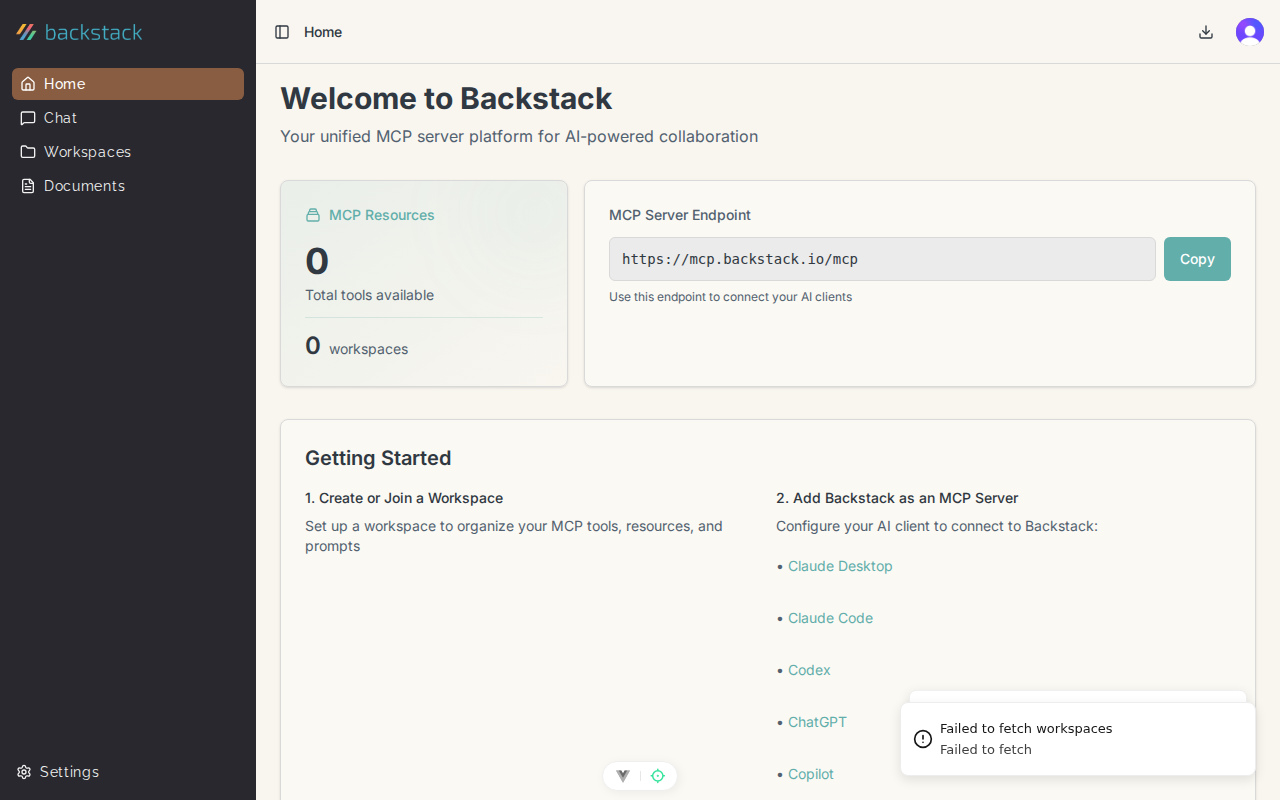
What the Desktop App Does
Key Features:- Document Discovery - Automatically find documents in folders you specify
- Background Sync - Keep documents synchronized with Backstack
- Watched Folders - Monitor specific directories for changes
- Organization Connection - Securely link your desktop to your Backstack organization
- Device Management - Manage multiple devices per organization
- Offline Support - Index documents locally when disconnected
The Desktop app is required for document management features. Without it, you can still use Backstack’s chat and MCP features, but document sharing and search won’t be available.
Installation
Windows
-
Download the installer:
- Visit app.backstack.io/download
- Click Download for Windows
- Save
Backstack-Setup.exe
-
Run the installer:
- Double-click
Backstack-Setup.exe - Follow the installation wizard
- Choose installation location (default:
C:\Program Files\Backstack) - Click Install
- Double-click
-
Launch Backstack Desktop:
- Application starts automatically after installation
- Find the Backstack icon in your system tray (bottom-right)
- Windows 10 or later (64-bit)
- 500 MB free disk space
- Internet connection
macOS
-
Download the installer:
- Visit app.backstack.io/download
- Click Download for macOS
- Save
Backstack.dmg
-
Install the application:
- Open
Backstack.dmg - Drag Backstack to Applications folder
- Eject the disk image
- Open
-
First launch:
- Open Applications folder
- Double-click Backstack
- If you see “Backstack cannot be opened,” right-click and select Open
- Click Open in the security dialog
- Find the Backstack icon in your menu bar (top-right)
- macOS 11 (Big Sur) or later
- Intel or Apple Silicon (M1/M2/M3) processor
- 500 MB free disk space
- Internet connection
Linux
-
Download the package:
- Visit app.backstack.io/download
- Choose your distribution:
- Debian/Ubuntu:
backstack_amd64.deb - Fedora/RHEL:
backstack_x86_64.rpm - AppImage:
Backstack.AppImage(universal)
- Debian/Ubuntu:
-
Install:
Debian/Ubuntu:
Fedora/RHEL:AppImage:
-
Launch:
- Search for “Backstack” in your application menu
- Or run
backstackfrom terminal
- Modern Linux distribution (Ubuntu 20.04+, Fedora 35+, or equivalent)
- 500 MB free disk space
- Internet connection
Connecting to Your Organization
First-Time Setup
After installing and launching the Desktop app:- Welcome Screen appears
- Click Connect to Organization
-
Choose authorization method:
Option A: QR Code (Recommended)
- A QR code appears on your desktop
- Open Backstack web app on your phone or another device
- Navigate to Settings → Devices
- Click Add Device
- Scan the QR code with your device camera
- Desktop app connects automatically
- Desktop shows a 6-digit code
- Go to app.backstack.io/devices
- Click Add Device
- Enter the 6-digit code
- Click Authorize
-
Device Naming:
- Desktop app is automatically named (e.g., “John’s MacBook Pro”)
- Rename if desired in device settings
-
Confirmation:
- Desktop shows “Connected to [Organization Name]”
- You’re ready to configure document sync
Multiple Organizations
If you’re a member of multiple organizations:- Click the Backstack icon in system tray/menu bar
- Select Switch Organization
- Choose the organization you want to connect to
- Desktop syncs with the selected organization
Watched Folders
What Are Watched Folders?
Watched folders are directories on your computer that Backstack Desktop monitors for documents. Any files in these folders are automatically:- Discovered and indexed
- Made available for sharing to workspaces
- Kept synchronized with updates
Adding Watched Folders
- Click the Backstack icon in system tray/menu bar
- Select Settings → Watched Folders
- Click Add Folder
- Browse to the folder you want to watch
- Click Select Folder
- Documents folder
- Project directories
- Downloads folder
- Specific client or project folders
Folder Permissions
Backstack Desktop needs read access to watched folders: Windows:- Desktop app requests permissions on first folder add
- Grant read access when prompted
- System prompts for “Files and Folders” permission
- Go to System Preferences → Security & Privacy → Privacy
- Enable access for Backstack under “Files and Folders”
- Ensure your user has read permissions for the folder
- Check with:
ls -la /path/to/folder
Excluding Files and Folders
Prevent specific files or subdirectories from being indexed:- Open Watched Folders settings
- Select a watched folder
- Click Exclusions
- Add patterns:
node_modules/- Exclude all node_modules directories*.log- Exclude log files.git/- Exclude git repositoriestemp/- Exclude temporary folders
Excluded files are never indexed or synced. If you later remove an exclusion, those files will be discovered on the next scan.
Removing Watched Folders
To stop watching a folder:- Go to Watched Folders settings
- Select the folder to remove
- Click Remove
- Confirm removal
Document Sync Behavior
How Sync Works
Initial Scan:- You add a watched folder
- Desktop app scans all files
- Supported documents are indexed
- Index is uploaded to Backstack
- Documents appear in your library
- Desktop watches for file system changes
- New files are discovered automatically
- Modified files are re-indexed
- Deleted files are removed from Backstack
- Changes sync within seconds
- Syncing - Actively uploading changes
- Up to Date - All changes synchronized
- Paused - Sync temporarily disabled
- Error - Issue preventing sync (check logs)
Supported File Types
Documents that can be indexed and shared:
Unsupported files are ignored during scanning.
Bandwidth and Performance
Background Operation:- Desktop uses minimal CPU when idle
- Sync happens in background, doesn’t slow down other apps
- Automatic throttling during active file operations
- Initial scan: Varies by document count and size
- Ongoing sync: Minimal (only changes are uploaded)
- Pause sync in settings if bandwidth is limited
- Local index: ~100 MB for 10,000 documents
- No duplicate storage - documents stay on your computer
Device Management
Viewing Your Devices
See all devices connected to your organization:- Go to app.backstack.io/settings/devices
- View list of authorized devices:
- Device name
- Platform (Windows, macOS, Linux)
- Last sync time
- Connection status
Renaming Devices
To change a device’s display name:- Click the Backstack icon → Settings
- Go to Device Settings
- Enter a new name (e.g., “Work Laptop”, “Home Desktop”)
- Click Save
Disconnecting Devices
To remove a device from your organization: From the Device:- Click Backstack icon → Settings
- Click Disconnect from Organization
- Confirm disconnection
- Go to Settings → Devices
- Find the device to remove
- Click Remove Device
- Confirm removal
Troubleshooting
Desktop App Won’t Start
Windows:- Check Task Manager for running Backstack processes
- Kill any hung processes
- Restart the application
- If issue persists, reinstall
- Check Activity Monitor for Backstack
- Quit and relaunch
- Reset permissions in System Preferences → Security & Privacy
- Reinstall if needed
- Check if process is running:
ps aux | grep backstack - Kill hung processes:
killall backstack - Check logs:
~/.config/Backstack/logs/ - Reinstall package
Can’t Connect to Organization
Problem: Authorization fails or times out Solutions:- Check internet connection
- Verify you’re logged into Backstack web app
- Try alternate authorization method (QR code vs code)
- Disable VPN temporarily
- Check firewall isn’t blocking app
- Ensure system time is correct
Documents Not Syncing
Problem: Files in watched folder don’t appear in library Solutions:- Verify Desktop app is running and connected
- Check watched folder path is correct
- Ensure file types are supported
- Look for exclusion patterns blocking files
- Check sync status in Desktop settings
- Review error logs for permission issues
High CPU Usage
Problem: Desktop app using excessive resources Solutions:- Check if large initial scan is in progress (wait for completion)
- Reduce number of watched folders
- Add exclusions for large directories (node_modules, .git, build/)
- Pause sync temporarily
- Restart Desktop app
- Check for file system loops (symlinks)
Sync Errors
Problem: Error badge on Backstack icon Solutions:- Click icon and view error details
- Common issues:
- Permission denied: Grant folder access in OS settings
- Network error: Check internet connection
- Storage full: Free up space on device
- Authentication expired: Re-authorize device
- Check logs for detailed error messages
- Contact support if error persists
Privacy and Security
What Gets Synced
Indexed Content:- Document text content (for search)
- File metadata (name, size, type, modified date)
- Folder structure
- Binary file contents (images, videos, executables)
- Files outside watched folders
- System files
- Excluded files and folders
Data Security
- All data transmitted over encrypted HTTPS
- Document content encrypted at rest
- Local index encrypted on disk
- No third-party access to your documents
- Unsharing removes content from Backstack servers
Offline Behavior
When internet is unavailable:- Desktop continues indexing locally
- Changes queue for sync when connection returns
- Document library shows last synced state
- Automatic sync resumes when online
Best Practices
Folder Organization
- Be selective - Don’t watch your entire hard drive
- Use project folders - Watch specific project or client directories
- Exclude build artifacts - Add node_modules, build/, dist/ to exclusions
- Separate sensitive data - Keep confidential files in non-watched folders
Performance
- Limit watched folders - Start with 2-3 folders, add more as needed
- Use exclusions - Block large directories that don’t need syncing
- Pause during intensive work - Disable sync when rendering video, compiling large projects
- Regular cleanup - Remove old watched folders you no longer need
Security
- Lock your computer - Desktop has access to watched folders
- Review shared documents - Periodically audit what’s shared to workspaces
- Disconnect old devices - Remove devices you no longer use
- Use workspace boundaries - Don’t share sensitive docs to broad workspaces
Next Steps
Document Management
Learn how to share and search your synced documents
Workspaces
Create workspaces and share documents to teams
AI Chat
Use documents in AI conversations
User Settings
Manage your devices and personal settings