

Organization Services
Organization Services allow you to install and manage MCP (Model Context Protocol) tools and servers that are available organization-wide. These services can then be assigned to specific workspaces as needed.Overview
There are two types of services you can add:NPM Packages
Install MCP tools from npm that run as serverless functions
Remote Servers
Connect to external MCP servers via URL
Prerequisites
- You must be an organization admin to manage services
- Access the Organization Services page at
/admin/tools
Installing NPM Packages
NPM packages are MCP tools that are installed from npm and run automatically when called by your AI clients.Steps to Install
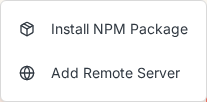
- Click the “Add Service” button
- Select “Install NPM Package” from the dropdown
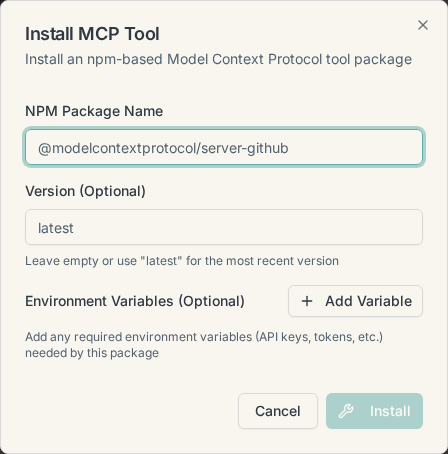
- Enter the NPM package name (e.g.,
@modelcontextprotocol/server-github) - Optionally specify a version (defaults to “latest”)
- Add any required environment variables:
- Click “Add Variable”
- Enter the key (e.g.,
GITHUB_TOKEN) - Enter the value (will be stored securely)
- Click “Install”
Popular NPM Packages
@modelcontextprotocol/server-github- GitHub integration@modelcontextprotocol/server-filesystem- File system access@modelcontextprotocol/server-postgres- PostgreSQL database access@modelcontextprotocol/server-brave-search- Brave search integration
Installation Process
When you install an NPM package, the system:- Downloads the package and its dependencies
- Prepares the service for deployment
- Deploys the service to run automatically when called
- Makes the service available for assignment to workspaces
Installation typically takes 2-5 minutes depending on package size.
Adding Remote Servers
Remote servers are external MCP servers that you connect to via URL. The server handles the MCP protocol communication.Steps to Add
- Click the “Add Service” button
- Select “Add Remote Server” from the dropdown
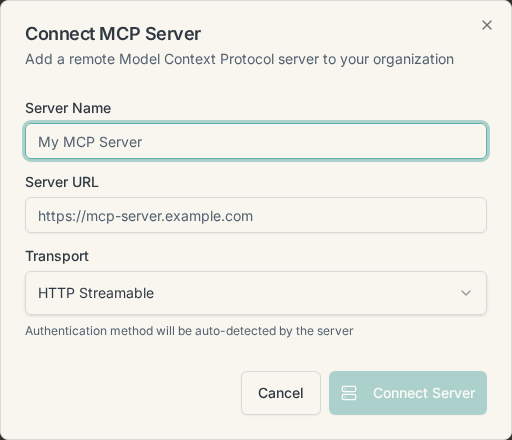
- Enter a descriptive Server Name
- Enter the Server URL (e.g.,
https://mcp-server.example.com) - Select the Transport type:
- Server-Sent Events (SSE) - For streaming responses
- HTTP Streamable - For HTTP-based streaming
- If the server requires authentication:
- The system will auto-detect OAuth requirements
- For token-based auth, enter the header key and value
- Click “Connect Server” (or “Authorize” for OAuth servers)
Authentication
Remote servers can use different authentication methods:- OAuth 2.0 - Automatically detected via
.well-knownendpoints - Token-based - Provide header key (e.g.,
Authorization) and value (e.g.,Bearer token) - None - For public servers
Service Status
Services can have the following statuses:
Managing Services
Viewing Install Status (NPM Packages)
- Click the three-dot menu on a service card
- Select “Install Status”
- View the build phases and current status
- See build duration and any error messages
Configuring Environment Variables
If a service shows “Needs Configuration”:- Click the three-dot menu
- Select “Configure”
- Enter values for required environment variables
- Optionally add custom variables
- Click “Save & Build”
The service will rebuild with the new configuration.
Retrying Failed Installations
If a service installation fails:- Click the three-dot menu
- Select “Retry Installation”
- The system will attempt to rebuild the service
- Check the install status for error details if it fails again
Uninstalling Services (NPM Packages)
- Click the three-dot menu on the service card
- Select “Uninstall”
- Confirm the uninstall action
Removing Remote Servers
- Click the three-dot menu on the server card
- Select “Remove Server”
- Confirm the removal
Best Practices
NPM Packages
- Use specific versions for production services to ensure stability
- Configure environment variables immediately after installation
- Test in a development workspace before assigning to production workspaces
- Monitor build status for the first installation of a new package
- Review package documentation on npm before installing
Remote Servers
- Use HTTPS URLs for security
- Verify server is MCP-compatible before connecting
- Keep authentication tokens secure - never share or commit them
- Use OAuth when available for better security than static tokens
- Test connectivity in a development workspace first
General
- Assign to workspaces selectively - not all services need to be in all workspaces
- Remove unused services to keep the list manageable
- Document service purposes internally for team awareness
- Review service status regularly to catch failed builds or connection issues
Troubleshooting
NPM Package Installation Fails
Check the build logs:- Open “Install Status” for the service
- Look for error messages in the build phases
- Common issues:
- Missing environment variables - Configure them and retry
- Dependency conflicts - Check package version compatibility
- Build timeout - Package may be too large, contact support
Remote Server Won’t Connect
Verify the following:- URL is correct - Server must be reachable from the internet
- Transport type matches - Server must support the selected transport
- Authentication is correct - Check token/OAuth configuration
- Server is MCP-compatible - Not all HTTP servers support MCP
- Firewall/CORS - Server must allow connections from Backstack
Service Shows “Needs Configuration”
This is normal for packages requiring secrets:- Click “Configure” from the service menu
- Enter the required values (usually API keys)
- Click “Save & Build”
- Wait for rebuild to complete
OAuth Authorization Required
For remote servers with OAuth:- Click “Authorize” when connecting
- You’ll be redirected to the OAuth provider
- Grant the requested permissions
- You’ll be redirected back to Backstack
- The server will show “Available” when connected
Further Reading
Support
If you encounter issues not covered in this guide:- Check the Backstack Documentation
- Contact support at [email protected]
- Join the community Discord for help from other users